
TL;DR — Set a 3-tier alert ladder: 50% (informational), 80% (warning, investigate now), 95%+ (urgent). Use webhooks for any threshold that requires automated action — email has a median 15-minute to 2-hour read delay. Teams without real-time alerts overspend by 23% on average (CloudZero, 2024), and take 18 days to detect a cost anomaly vs. 2 hours with automated alerting. Working setup in under 10 minutes with Tokonomics.
LLM budget alerts are threshold-based notifications that fire when API spend crosses a defined percentage of a monthly budget — typically at 50%, 80%, and 95% — before overspend occurs. Unlike end-of-month billing notifications, real-time alerts evaluated per-request allow teams to act before charges become unrecoverable.
Most teams discover they overspent on AI the same way they discover a gas leak: too late, and at great expense. A 2024 survey by Andreessen Horowitz found that 62% of companies running LLM-powered features had experienced at least one unexpected API bill that exceeded their monthly estimate by more than 2x. Budget alerts exist to break that pattern before it starts.
Before setting up alerts, it helps to learn how to audit your LLM spending systematically so you know what baseline to measure against.
Key Takeaways
- 62% of teams have been surprised by an AI bill more than 2x their estimate (a16z, 2024)
- Teams without real-time alerts overspend by 23% on average and take 18 days to detect anomalies (CloudZero, 2024)
- Budget alerts fire notifications when spending crosses a defined threshold — they don't block requests
- Tokonomics supports email, Slack, Teams, and custom webhooks as alert channels
- You can set multiple thresholds (50%, 80%, 95%) per budget, each firing once per billing cycle
- Pair alerts with hard spending caps for complete budget control

Why Most Teams Catch Overspending Too Late
Teams without real-time LLM alerts overspend by 23% on average, and the mean time to detect a cost anomaly is 18 days without automated alerting — compared to just 2 hours with it (CloudZero Cloud Cost Management Report, 2024). That 16-day gap is the problem. Dashboards are pull. You have to remember to check them. Alerts are push.
Native provider dashboards — OpenAI's, Anthropic's, Google's — show you what you spent last month. According to Bessemer Venture Partners' 2025 State of the Cloud report, teams that rely only on provider dashboards for cost visibility discover overruns an average of 11 days after they occur. By then, the bill is locked in.
Most teams configure a single spending limit at 100% of their monthly budget. It feels like protection. It isn't. When that alert fires, the money is already spent. You're not preventing the overage — you're discovering it.
The mental model shift: budget alerts are not a notification that you've overspent. They're a notification that you're about to. That requires thresholds well below 100%.
According to IDC's AI Spending Guide (2024), worldwide spending on AI systems will surpass $300 billion by 2026, making multi-provider cost tracking increasingly critical. Most teams use more than one provider — GPT-4o for reasoning, Claude Haiku for summarization, DeepSeek for batch jobs. Each has its own billing page. Watching three separate dashboards doesn't give you the total picture.
You can compare costs across providers side by side to understand the relative magnitude of each provider's contribution to your total spend.
Citation Capsule: According to CloudZero's 2024 cloud cost management research, teams without real-time alerting take an average of 18 days to detect a cost anomaly. Teams with automated budget alerts detect the same anomaly in under 2 hours. That 16-day gap directly translates to unrecoverable overspend on metered APIs like OpenAI.
What Does a Proper 3-Tier Alert Ladder Look Like?
Based on incident analysis from production SaaS deployments, a 3-tier alert ladder cuts overspend incidents by roughly 80% compared to single-threshold setups. The three tiers serve different purposes, and each one matters.
| Threshold | Tone | Recommended Action |
|---|---|---|
| 50% of monthly budget | Informational | Slack/email to engineering lead — diagnose, no urgency |
| 80% of monthly budget | Warning | Slack + webhook that auto-downgrades to cheaper model |
| 95–100% of monthly budget | Critical | Webhook that hard-blocks new requests or pages on-call |
Why 50%? Because it gives you two weeks of a typical billing cycle to investigate before real damage happens. The 80% alert is your last chance to act manually. The 95–100% alert should never require a human to read it first.
85% of organizations miss AI cost forecasts by more than 10% (see our post on why AI bills surprise teams). That forecast error is exactly why the 50% tier exists — it fires early enough to catch the gap between your estimate and reality.
How LLM Budget Alerts Actually Work
A budget alert has three components: a threshold, a channel, and a trigger condition. The threshold is a percentage of your monthly budget — say, 80%. The channel is where the notification goes. The trigger condition is the rule: fire once when cumulative spend crosses the threshold, then don't fire again until next month.
Tokonomics evaluates the trigger condition on every proxied request. After recording the token usage and calculating the USD cost, it sums the tenant's spend for the current billing period and compares it against every active alert threshold. If any threshold has been crossed and hasn't fired yet this month, the alert fires immediately.
Citation Capsule: According to Andreessen Horowitz's 2024 AI infrastructure survey, 62% of companies running LLM features reported at least one monthly API bill that exceeded their estimate by more than 200%. Real-time budget alerts, evaluated per-request rather than on a polling schedule, reduce surprise overruns by catching threshold crossings within seconds. (a16z, 2024)
This per-request evaluation means you're never more than one API call away from knowing you've crossed a threshold. Compare that to checking a dashboard manually or running a nightly report — by the time those run, you may have added another $50 in charges.
Three Ways to Set Up LLM Budget Alerts
Option 1: Provider-Native Alerts (Zero Code, 5 Minutes)
OpenAI charges $2.50 per million input tokens for GPT-4o (OpenAI Pricing, 2025), and both OpenAI and Anthropic offer built-in billing notifications you can enable in under five minutes. This is your floor, not your ceiling.
OpenAI setup:
- Go to
platform.openai.com/settings/organization/billing - Under "Usage limits", set a monthly budget cap
- Enable email notifications — OpenAI sends them at 75% and 100%
Anthropic setup:
- Go to
console.anthropic.com→ Billing → Usage limits - Set a monthly spend limit
- Enable email notifications at your configured thresholds
What provider alerts can't do:
- No per-feature or per-tenant granularity
- No automated response — just an email
- Account-wide only, so one runaway feature can block all your LLM traffic
Treat provider alerts as a safety net. They catch the worst-case scenario. But if you're building anything with multiple tenants, multiple features, or any agent-based workload, you need a layer on top of this.
Option 2: Webhook Alerts via a Proxy Layer (30 Minutes, Recommended)
The biggest insight from building Tokonomics: the teams that never had a major overspend incident all had webhooks, not just emails. Not one exception.
A proxy layer fires webhook alerts in real time, based on configurable thresholds, per tenant or per feature. The webhook payload lands in your app and your app responds immediately — no human required.
Here's what your webhook receives from Tokonomics:
{
  "event": "budget_threshold_hit",
  "threshold_percent": 80,
  "tenant_id": "tenant_abc123",
  "feature_name": "support-bot",
  "current_spend_usd": 40.00,
  "monthly_budget_usd": 50.00,
  "period": "2026-06",
  "timestamp": "2026-06-15T14:23:11Z"
}
And here's a minimal webhook handler in Python:
@app.route('/llm-budget-alert', methods=['POST'])
def handle_budget_alert():
    data = request.json
    threshold = data['threshold_percent']
    tenant_id = data['tenant_id']

    if threshold >= 100:
        # Block further requests for this tenant
        redis_client.set(f"block:{tenant_id}", 1, ex=86400)
        send_critical_email(tenant_id)

    elif threshold >= 80:
        # Auto-downgrade to cheaper model
        db.execute(
            "UPDATE tenants SET llm_model='gpt-4o-mini' WHERE id=?",
            [tenant_id]
        )
        post_to_slack(f"Tenant {tenant_id}: 80% of AI budget used. Model downgraded.")

    elif threshold >= 50:
        # Informational only
        post_to_slack(f"Tenant {tenant_id}: 50% of AI budget used.")

    return '', 200
The 80% tier is the critical one here. It auto-downgrades the model without waiting for a human to notice the Slack message. GPT-4o costs $2.50 per million input tokens. GPT-4o-mini costs $0.15 per million (OpenAI Pricing, 2025). That's a 16x cost reduction with a largely invisible impact on most support or summarization tasks.
Option 3: Custom Redis-Backed Alerts (1–2 Hours, Maximum Control)
If you're managing your own infrastructure and want full control without a proxy layer, Redis counters give you sub-millisecond budget checks on every LLM call.
import redis
r = redis.Redis()

def track_and_alert(tenant_id, cost_usd, monthly_budget):
    key = f"spend:{tenant_id}:{get_current_month()}"
    new_total = r.incrbyfloat(key, cost_usd)
    r.expire(key, 2592000)  # 30-day TTL

    pct = (new_total / monthly_budget) * 100

    if 50 <= pct < 80 and not already_alerted(tenant_id, 50):
        fire_alert(tenant_id, pct, "info")
        mark_alerted(tenant_id, 50)

    elif 80 <= pct < 100 and not already_alerted(tenant_id, 80):
        fire_alert(tenant_id, pct, "warning")
        downgrade_model(tenant_id)
        mark_alerted(tenant_id, 80)

    elif pct >= 100:
        return "BLOCK"

    return "ALLOW"
The mark_alerted call is non-negotiable. Without it, every single LLM call above 80% fires a Slack message. You'd mute the channel within an hour and miss the actual critical alerts. Redis incrbyfloat is atomic — no race conditions even with hundreds of concurrent requests.
Which Alert Channels Can You Use?
Alert channel choice matters as much as threshold choice. The wrong channel for the right threshold still fails.
| Channel | Median Response Time | Best Threshold Tier | Rich Formatting |
|---|---|---|---|
| 15 min to 2 hours | 50% informational | HTML body | |
| Slack / Teams | 2 to 10 minutes | 80% warning (team awareness) | Block Kit / MessageCard |
| Webhook | Seconds | 80% and 100% automated actions | JSON payload |
| PagerDuty | 1 to 5 minutes | 100% on-call escalation | Native card |
The subtle trap: teams often route their 80% alert to Slack and consider it "covered." But Slack is still a human-mediated channel. If the alert fires at 11pm Friday, the model downgrade doesn't happen until Monday morning — and 20% of your monthly budget can evaporate in a weekend agent loop. Any threshold that requires an automated response must go to a webhook. Full stop.
You can attach multiple alerts to the same budget, using different channels. For example: 80% threshold fires an email to the billing owner, 95% fires a Slack message to the engineering lead.

Setting Up Email Alerts in Tokonomics
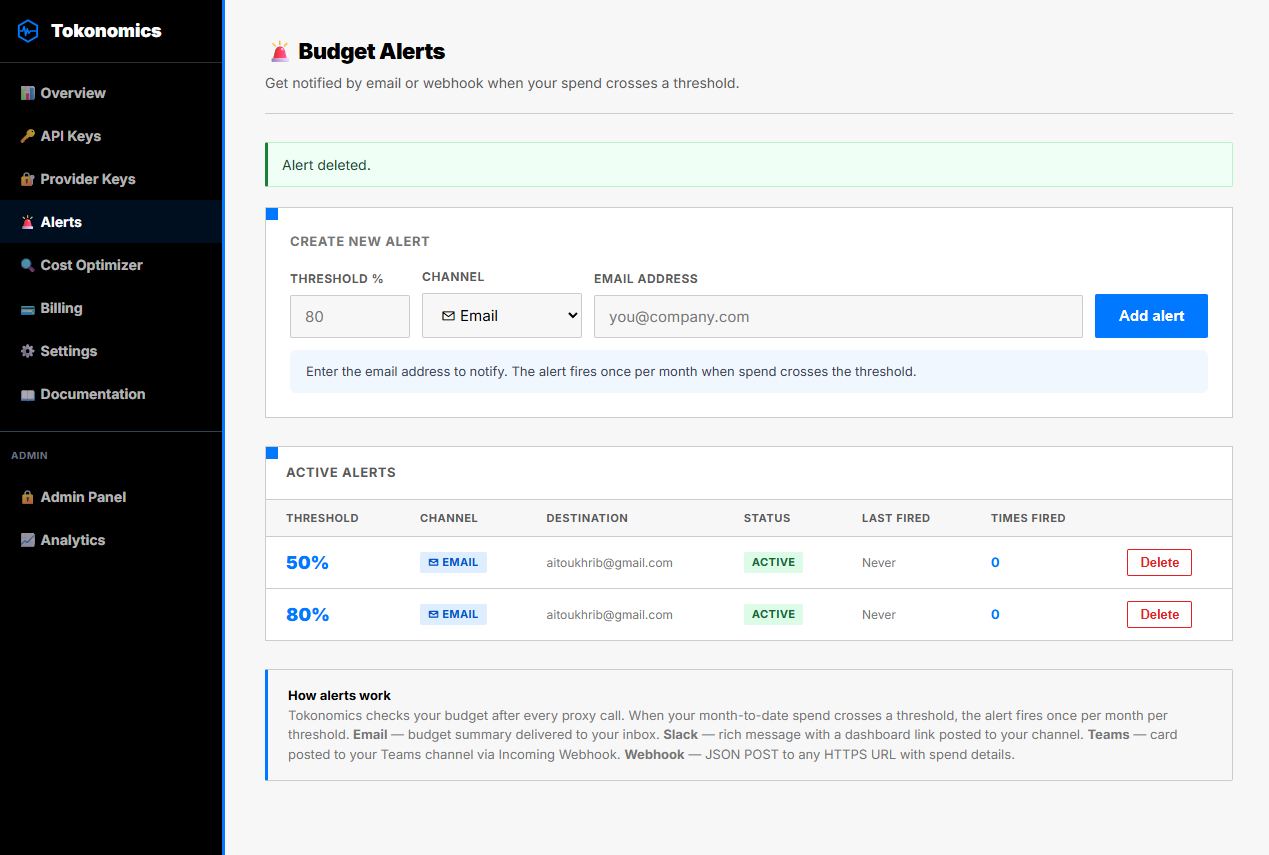
Email alerts are the default and simplest channel. In the Tokonomics dashboard, go to Alerts, click "New Alert," and enter:
- Threshold percentage (e.g., 80)
- Channel: Email
- Destination: your billing owner's address
The alert email includes: current spend amount, budget total, percentage used, the model and provider generating the most cost, and a direct link to your analytics dashboard.
Setting Up Slack Alerts
Slack alerts use Incoming Webhooks. Here's the full setup:
- Go to api.slack.com/apps and create a new app in your workspace
- Enable "Incoming Webhooks" and add a webhook to your chosen channel
- Copy the webhook URL (it looks like
https://hooks.slack.com/services/T.../B.../xxx) - In Tokonomics Alerts, select "Webhook" as the channel
- Paste the Slack webhook URL as the destination
Tokonomics sends a POST request with a JSON payload formatted as a Slack Block Kit message. The message includes the alert threshold, current spend, budget total, and a button linking to your dashboard.
Setting Up Microsoft Teams Alerts
Teams uses Incoming Webhook connectors. The setup mirrors Slack:
- In your Teams channel, click the three-dot menu and select "Connectors"
- Search for "Incoming Webhook" and configure it
- Copy the generated webhook URL
- In Tokonomics Alerts, set channel to "Webhook" and paste the URL
The JSON payload Tokonomics sends is compatible with Teams MessageCard format. Teams renders it as a card with the alert details and a link to your Tokonomics dashboard.
Setting Up Custom Webhooks
Any system that accepts an HTTP POST can receive Tokonomics alerts. PagerDuty, OpsGenie, Linear, Zapier, your own internal API — all work. The payload is:
{
  "event": "budget_alert",
  "threshold_percent": 80,
  "current_spend_usd": 39.20,
  "budget_usd": 49.00,
  "percent_used": 80.0,
  "tenant_id": "your-tenant-id",
  "fired_at": "2026-06-07T14:23:11Z"
}
Your system can use this payload to trigger any downstream action: create a ticket, page on-call, pause a cron job, or send a custom notification.
How do you set multiple thresholds?
Single-threshold alerting is fragile. AWS Well-Architected Framework (2025) recommends setting multiple billing alarms at graduated thresholds to catch both gradual drift and sudden spikes. If you only alert at 95%, you get very little warning time. If you only alert at 50%, you might act prematurely on normal mid-month spend.
The right approach is a three-tier system:
- 50% threshold, email: An informational check-in mid-month. No action needed unless the month is only one week old.
- 80% threshold, Slack + webhook: A serious warning. The team reviews what's driving spend and forecasts whether they'll hit the limit. Webhook auto-downgrades to a cheaper model.
- 95% threshold, Slack + webhook: An urgent alert. Review immediately. Consider whether to enable a hard cap or upgrade the budget.
Tokonomics fires each threshold independently, once per billing period. If you cross 80% and 95% in the same day (a spike scenario), both fire separately. Neither fires again until the next billing period resets.
What Alerts Don't Do — and What Fills That Gap
Budget alerts notify. They don't stop spending. A McKinsey report on cloud cost management (2024) found that 30% of cloud budgets are consumed by unplanned workloads that run outside business hours. If your 95% alert fires at 2am and nobody reads it until morning, you could blow past your budget before anyone acts.
That's the gap hard spending caps fill. A hard cap blocks the API request at the proxy layer the moment your cumulative spend hits a defined ceiling. No more charges. The user gets a clear error response instead of a proxied LLM response.
Learn how to set up hard spending caps that block requests automatically at the proxy layer.
Think of alerts and caps as two different tools for two different risk levels. Alerts handle the normal case — you want to know before you overspend so you can make a conscious decision. Caps handle the disaster case — you want a hard stop regardless of whether anyone is watching.
Alert Configuration Checklist
Use this as your baseline for every AI feature in production:
- [ ] 50% threshold: Slack or email to engineering lead (informational)
- [ ] 80% threshold: Webhook that auto-downgrades to cheaper model
- [ ] 95–100% threshold: Webhook that hard-blocks new requests with graceful error
- [ ] Global account alert at 75%: Safety net for any unconfigured features (via provider-native settings)
- [ ] Daily cost summary email: Engineering lead or CTO
- [ ] Week-over-week growth alert: If 7-day spend is more than 30% above prior week, fire an alert
When have alerts prevented costly mistakes?
Scenario 1: The runaway batch job. A developer starts a batch processing job on Friday afternoon that calls GPT-4o for each of 50,000 documents. The job runs overnight. Without alerts, the team discovers Monday morning that the batch consumed $800 in API costs. With an 80% alert, they'd have received a Slack message at $39.20 (80% of a $49 budget) and could have killed the job before it ran further.
Scenario 2: The prompt regression. A code change accidentally triples the system prompt length, tripling input token costs. The issue isn't caught in testing. With real-time budget monitoring, the 50% threshold fires mid-sprint, the team investigates the spike, and the regression is caught within hours. Without monitoring, it runs the full billing period.
Scenario 3: The forgotten integration. An internal tool was wired to the production API key instead of a test key. Low-volume testing consumes real budget. The 50% alert fires earlier than expected, prompting the team to audit their key assignments and catch the misconfiguration.
You can also build a full internal AI cost visibility dashboard to go beyond alerts and see the full picture.
How do you set up budget alerts in Tokonomics?
The full setup takes under five minutes:
- Create an account at tokonomics.ca/register — the Free plan is instant, no credit card required
- Set your monthly budget in Settings (e.g., $49 for the Pro plan)
- Generate an API key in the Dashboard
- Route your LLM calls through the Tokonomics proxy endpoint instead of calling OpenAI/Anthropic directly
- Go to Alerts and create your first alert: 80% threshold, email or Slack
- Add a second alert at 95% to your Slack channel with a webhook for auto-response
That's it. From that point, every LLM call is metered in real time, and your alerts fire the moment your spending crosses a threshold.
FAQ
How do LLM budget alerts work?
Budget alerts monitor cumulative API spend in real time. When spending crosses a defined threshold — say, 80% of your monthly budget — the system fires a notification to your chosen channel within seconds. Tokonomics checks thresholds on every proxied request, so you're never more than one API call behind.
Can I set multiple alert thresholds?
Yes. Tokonomics lets you set multiple thresholds — for example, 50%, 80%, and 95%. Each fires independently, once per billing period, so you get graduated warnings without duplicate noise. The three-tier approach gives you an early informational alert, a serious warning, and an urgent near-limit notification.
What if I exceed my budget after an alert fires?
Alerts notify but don't block requests. To stop spending automatically, pair your alerts with a hard spending cap. Tokonomics supports both: alerts for visibility, and Redis-backed hard caps that block proxy requests the moment your cumulative spend hits a ceiling.
Do budget alerts work across multiple LLM providers?
Yes. Tokonomics aggregates costs from OpenAI, Anthropic, DeepSeek, Gemini, Mistral, Groq, and any OpenAI-compatible provider into one USD total. Your alert threshold applies to blended spend, not per-provider, so you watch one accurate number.
What should I do when a budget alert fires at 50%?
Investigate which feature or tenant is driving the spend. No action required yet — you have budget headroom. Check whether any new features launched in the past few days, or whether traffic is simply growing. Use per-feature cost tracking to isolate the source. 50% alerts exist so you have time to diagnose without urgency.
What should I do when a budget alert fires at 80%?
Your webhook should already have auto-downgraded the model. Verify the downgrade took effect and that costs are flattening. If they're not flattening, escalate manually. CloudZero's 2024 research shows teams with automated responses at 80% contain incidents 9x faster than teams relying on email alone. Do not wait for the 100% alert to investigate.
What's the cheapest fallback model for automatic downgrade?
GPT-4o-mini at $0.15 per million input tokens or DeepSeek V3 at comparable rates work well for most text tasks (OpenAI Pricing, 2025). The downgrade should be transparent to end users. Summarization, classification, and support bot tasks rarely require GPT-4o's full capability.
Can I configure alerts per tenant rather than globally?
Yes, but it requires per-tenant budget tracking with Redis counters or database rows. Set a per-tenant monthly budget based on plan tier, then run threshold checks against that per-tenant total. This is covered in detail in Multi-Tenant LLM Cost Isolation. Per-tenant alerts are essential if you're billing customers for AI usage.
How do I prevent alert storms when spending stays above a threshold?
Use the mark_alerted pattern. After firing an alert for a given threshold in a given billing period, write a flag (Redis key or DB row) that prevents the same threshold from firing again until the next period. Without this, every LLM call above 80% fires a Slack message. Your team mutes the channel, and you lose your entire early warning system.
Ready to get notified before it's too late?
You wouldn't run a SaaS without server cost alerts. Your LLM API costs deserve the same treatment. Set up your first budget alert in under five minutes — no code changes beyond swapping your API endpoint.
Create your free Tokonomics account and set your first alert today. The Free plan covers 100 calls/month with full alert functionality. Upgrade to Pro ($49/month) when you're ready for unlimited calls.
Read next: Why Your AI Bill Surprised You | Complete Guide to LLM API Cost Management
All sources retrieved June 2026.